Guests & emails
Every guest, from invitation to arrival.
Upload your list from Excel, send the invitations from the editor, and see for each guest whether the email arrived, how they replied and when they walked in.

Import
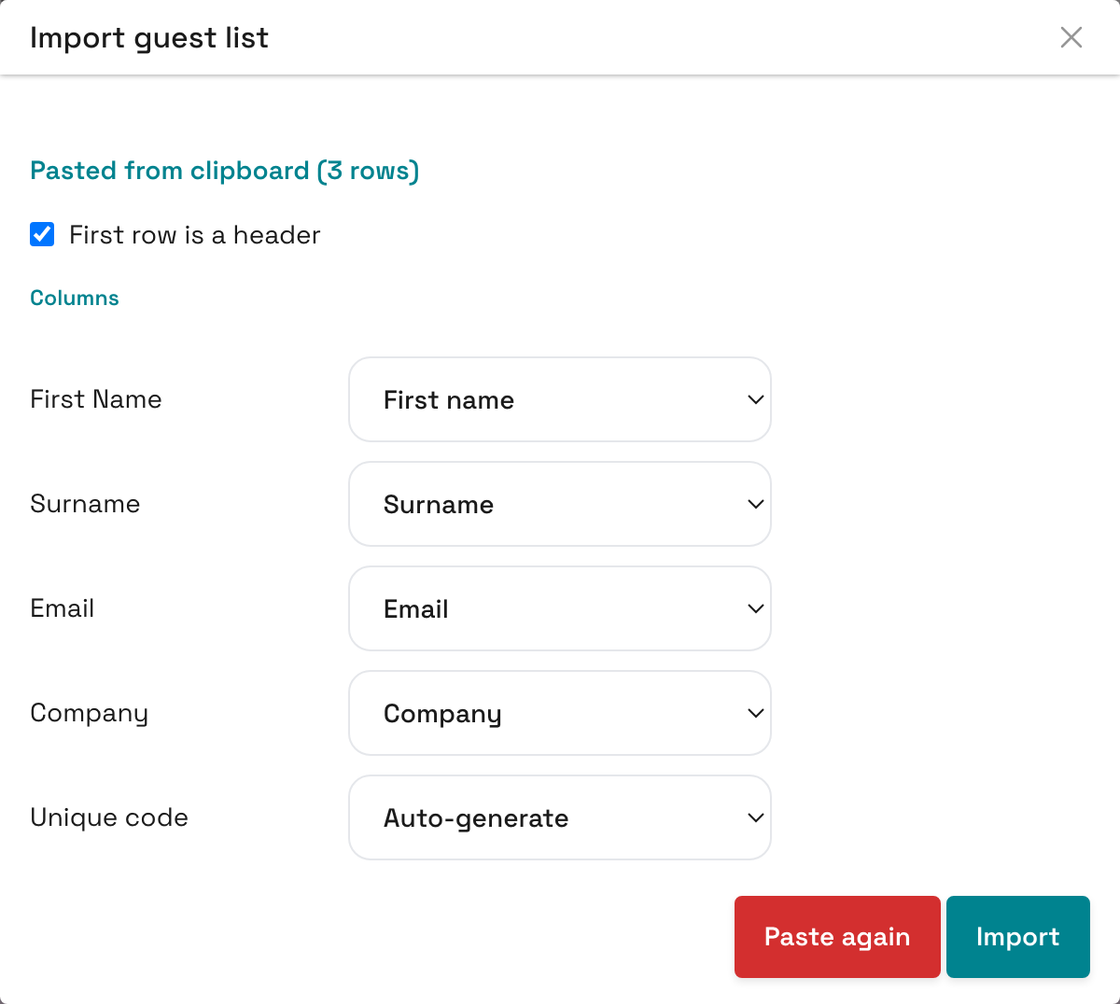
Upload or paste the list you already have.
No retyping. Upload the spreadsheet, match its columns to the event’s fields, and every guest gets their own QR code.
- CSV, XLS, XLSX or ODS
- Or copy the table from Excel or Google Sheets and paste it straight in.
- Columns to event fields
- Name, email and the event’s own fields, such as company or table number.
- Codes from another system
- Selling tickets elsewhere? Take the codes from a column, and Scout reads them at the door.
- Nothing goes out by itself
- Importing sends guests nothing. You send the invitations when you are ready.
Invitations
Design it once. It goes out at the right moment.
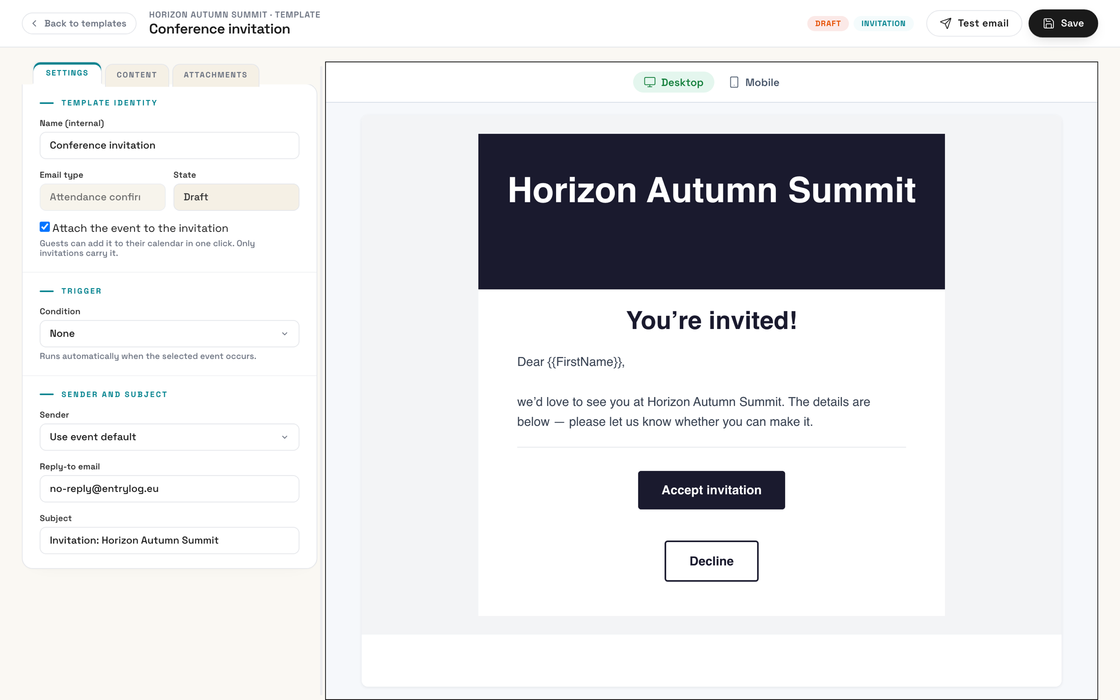
An editor with live preview, and triggers that send the right email at the right moment: when a guest confirms, declines, or walks through the door.
- Visual editor with live preview
- Build a clean email without touching HTML. See the result render as you go.
- Triggers with a delay
- Attendance confirmed, declined, checked in. The email goes out straight away, or minutes, hours or days later.
- Scheduled sends
- Send a reminder at a set time to everyone who hasn’t replied yet, has confirmed, or has already arrived.
- From your own address
- Guests get the email from you, say
events@yourbrand.com, not from EntryLog.
Timeline
See everything that happened with each guest.
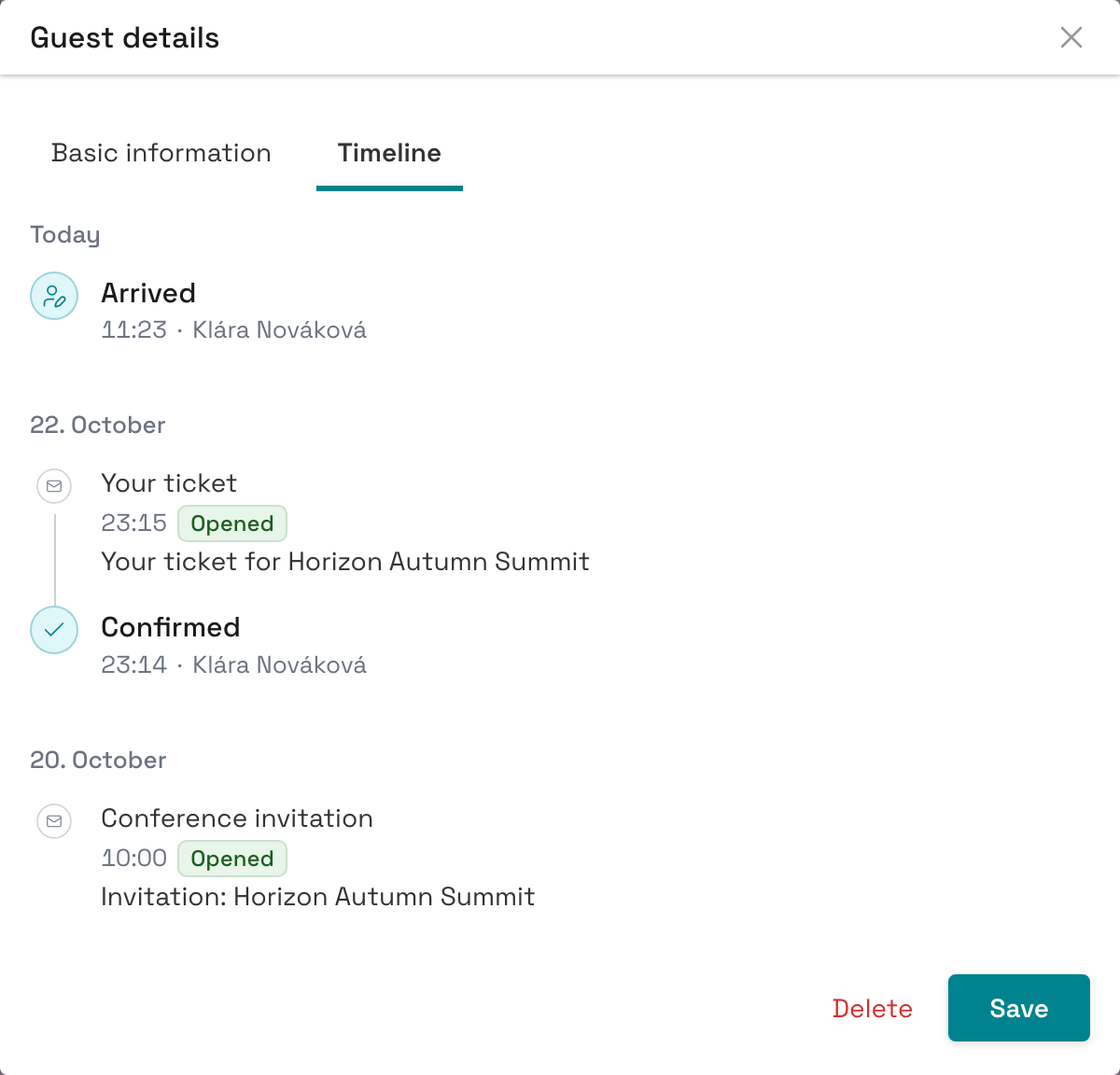
Registration, payment, replies, emails and arrivals — all in one place on the guest, newest first.
- Emails with delivery status
- For every email you see whether it was sent, delivered, opened or bounced.
- Replies and payments
- When the guest registered, verified their email, accepted or declined, and what they paid.
- Arrivals and manual changes
- When they arrived and left, at which station, and who changed their state by hand — with a note saying why.
What else you can set up
Guest list
- Sorting and bulk edits
- Sort, filter and search the list. Select dozens of guests at once and update them in one click.
- Custom fields
- Add your own fields to each event — text, number, yes/no or a choice of options.
- Organisations and team
- A separate organisation for each client, with its own events. Invite colleagues by email.
Emails
- Attendance confirmation
- Whoever confirms gets a confirmation by email. Switch it off, or replace it with your own template.
- Manual sends
- Email selected guests, a single guest, or everyone matching a filter. Check the recipients before anything goes out.
- In the event’s language
- An event in Czech sends guests their sign-up and attendance emails in Czech, whatever their browser is set to.
Before you send the invitations
-
Can we send emails from our own address?
Yes. Add a sender in your organisation settings and confirm the address through the link that arrives there. Then make it the event’s default, or use it for individual emails only.
-
Do our colleagues see the same guests?
Yes. Everyone in an organisation sees the same events and guests. Events belonging to other organisations, such as your other clients, stay out of it.